


1. PC Configuration
1.1 Download and Run Charles on PC
Download from the official website. The latest version is fine.
Find the registration code online yourself.
1.2 Charles -> Tools Menu Configuration
1.2.1 Import the Following Config File into Rewrite and Check Enable Rewrite
Save the following content as a file: Rewrite_Sandbox.xml
<?xml version='1.0' encoding='UTF-8' ?>
<?charles serialisation-version='2.0' ?>
<rewriteSets>
  <rewriteSet>
    <active>true</active>
    <name>沙箱环境url替换</name>
    <hosts>
      <locationPatterns>
        <locationMatch>
          <location>
            <protocol>http</protocol>
            <host>paylater-sandbox.didiglobal.com</host>
            <path>/gateway/bnpl/tpl/loan</path>
          </location>
        </locationMatch>
      </locationPatterns>
    </hosts>
    <rules>
      <rewriteRule>
        <active>true</active>
        <ruleType>6</ruleType>
        <matchValue>http://paylater-sandbox.didiglobal.com/gateway/bnpl/tpl/loan</matchValue>
        <matchValueRegex>true</matchValueRegex>
        <matchRequest>true</matchRequest>
        <newValue>http://paylater-sandbox.didiglobal.com/freya-gateway/bnpl/tpl/loan</newValue>
        <caseSensitive>false</caseSensitive>
        <replaceType>2</replaceType>
      </rewriteRule>
    </rules>
  </rewriteSet>
  <rewriteSet>
    <active>true</active>
    <name>独立端onlink</name>
    <hosts>
      <locationPatterns>
        <locationMatch>
          <location>
            <host>api.didiglobal.com</host>
            <path>/\*?\*</path>
          </location>
        </locationMatch>
      </locationPatterns>
    </hosts>
    <rules>
      <rewriteRule>
        <active>true</active>
        <ruleType>7</ruleType>
        <matchValue>com.didiglobal.cashloan.inhouse</matchValue>
        <matchValueRegex>true</matchValueRegex>
        <matchRequest>true</matchRequest>
        <newValue>com.didiglobal.cashloan</newValue>
        <caseSensitive>false</caseSensitive>
        <replaceType>2</replaceType>
      </rewriteRule>
    </rules>
  </rewriteSet>
</rewriteSets>
Result:
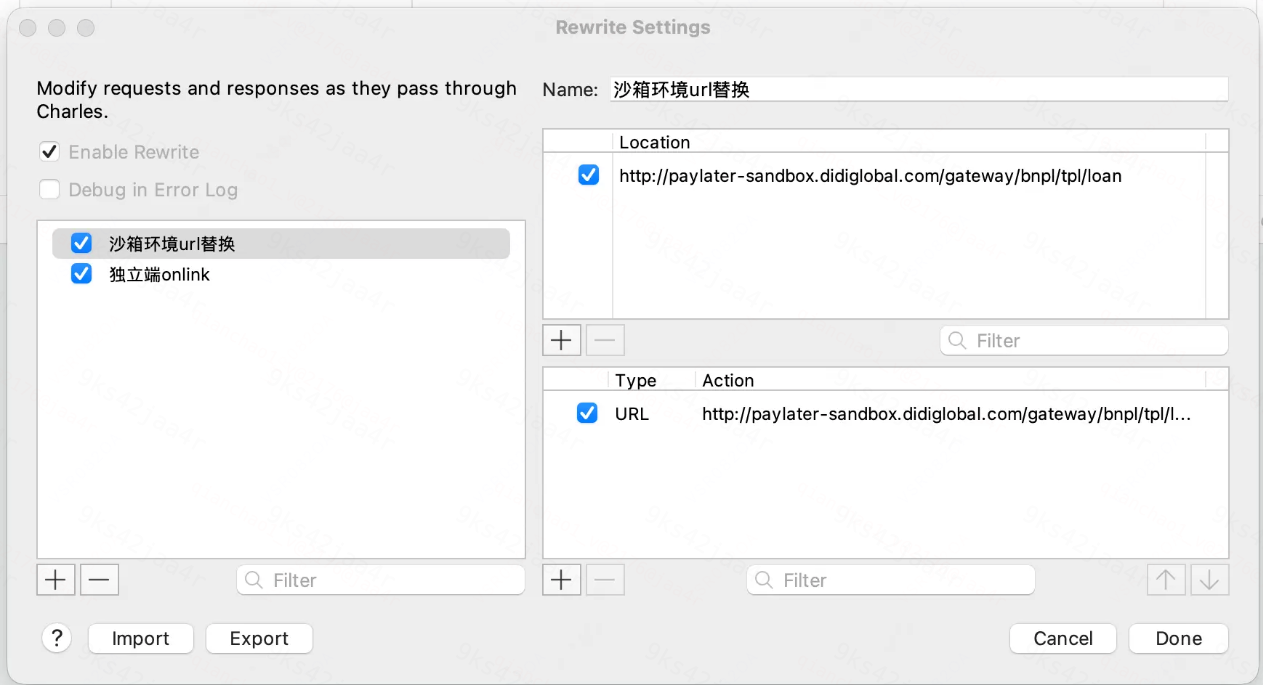
1.2.2 Configure the Following in Map Remote (import may fail; configure one by one) and Check Enable Map Remote
If you want to try importing as a whole, save the following content (same as the table above, only in XML format) as a file MapRemote_Sandbox.xml and import it.
<?xml version='1.0' encoding='UTF-8' ?>
<?charles serialisation-version='2.0' ?>
<map>
  <mappings>
    <mapMapping>
      <sourceLocation>
        <protocol>https</protocol>
        <host>manhattan-app.didiglobal.com</host>
      </sourceLocation>
      <destLocation>
        <protocol>http</protocol>
        <host>paylater-sandbox.didiglobal.com</host>
      </destLocation>
    </mapMapping>
    <mapMapping>
      <sourceLocation>
        <protocol>https</protocol>
        <host>hermes.didifinance.com</host>
      </sourceLocation>
      <destLocation>
        <protocol>http</protocol>
        <host>paylater-sandbox.didiglobal.com</host>
      </destLocation>
    </mapMapping>
    <mapMapping>
      <sourceLocation>
        <protocol>https</protocol>
        <host>pay.didiglobal.com</host>
        <port>443</port>
      </sourceLocation>
      <destLocation>
        <protocol>http</protocol>
        <host>paylater-sandbox.didiglobal.com</host>
      </destLocation>
    </mapMapping>
    <mapMapping>
      <sourceLocation>
        <protocol>https</protocol>
        <host>epassport.didiglobal.com</host>
      </sourceLocation>
      <destLocation>
        <protocol>http</protocol>
        <host>paylater-sandbox.didiglobal.com</host>
      </destLocation>
    </mapMapping>
    <mapMapping>
      <sourceLocation>
        <protocol>https</protocol>
        <host>didi-paga-despues.didiglobal.com</host>
      </sourceLocation>
      <destLocation>
        <protocol>http</protocol>
        <host>paylater-sandbox.didiglobal.com</host>
      </destLocation>
    </mapMapping>
    <mapMapping>
      <sourceLocation>
        <protocol>http</protocol>
        <host>paylater-sandbox.didiglobal.com</host>
        <path>/gateway/bnpl/tpl/loan</path>
      </sourceLocation>
      <destLocation>
        <protocol>http</protocol>
        <host>paylater-sandbox.didiglobal.com</host>
        <path>/freya-gateway/bnpl/tpl/loan</path>
      </destLocation>
    </mapMapping>
    <mapMapping>
      <sourceLocation>
        <protocol>https</protocol>
        <host>hermes.didiglobal.com</host>
      </sourceLocation>
      <destLocation>
        <protocol>http</protocol>
        <host>paylater-sandbox.didiglobal.com</host>
      </destLocation>
    </mapMapping>
    <mapMapping>
      <sourceLocation>
        <protocol>https</protocol>
        <host>didi-paga-despues.didifinance.com</host>
      </sourceLocation>
      <destLocation>
        <protocol>http</protocol>
        <host>paylater-sandbox.didiglobal.com</host>
      </destLocation>
    </mapMapping>
    <mapMapping>
      <sourceLocation>
        <protocol>https</protocol>
        <host>risk-pay.didifinance.com</host>
        <port>443</port>
      </sourceLocation>
      <destLocation>
        <protocol>http</protocol>
        <host>paylater-sandbox.didiglobal.com</host>
      </destLocation>
    </mapMapping>
  </mappings>
</map>
Result:
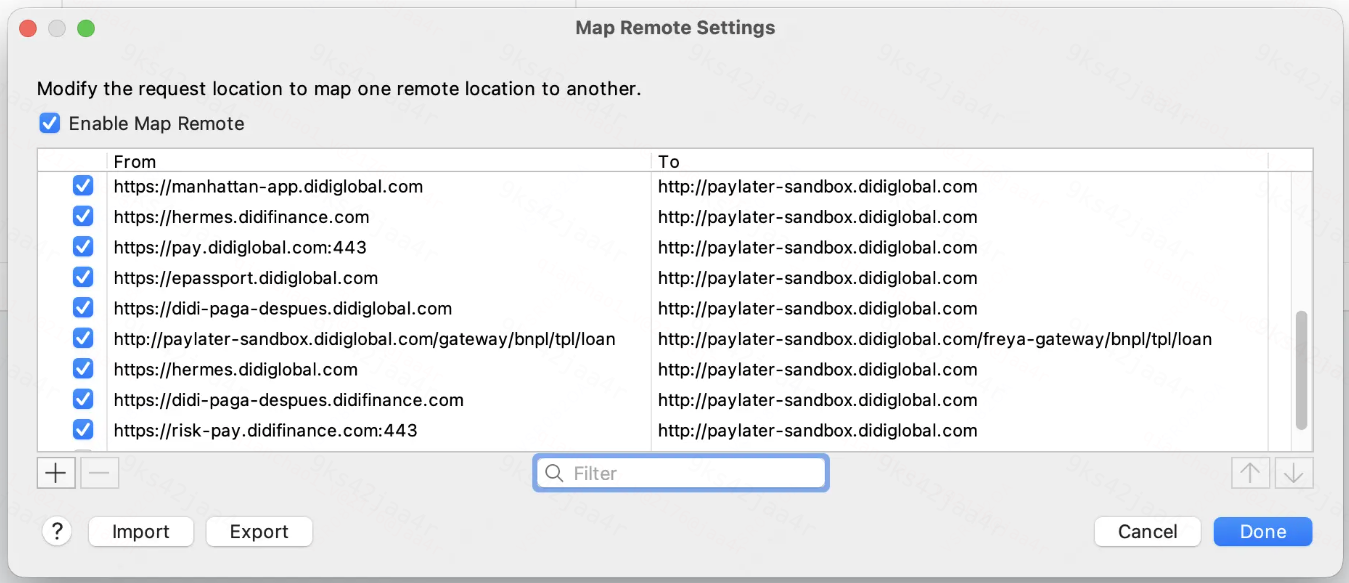
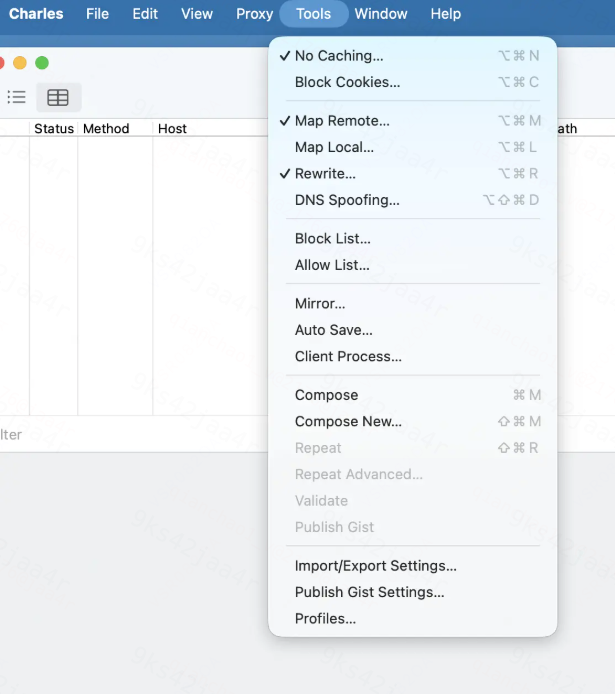
1.2.3 Menu Effect After Enable
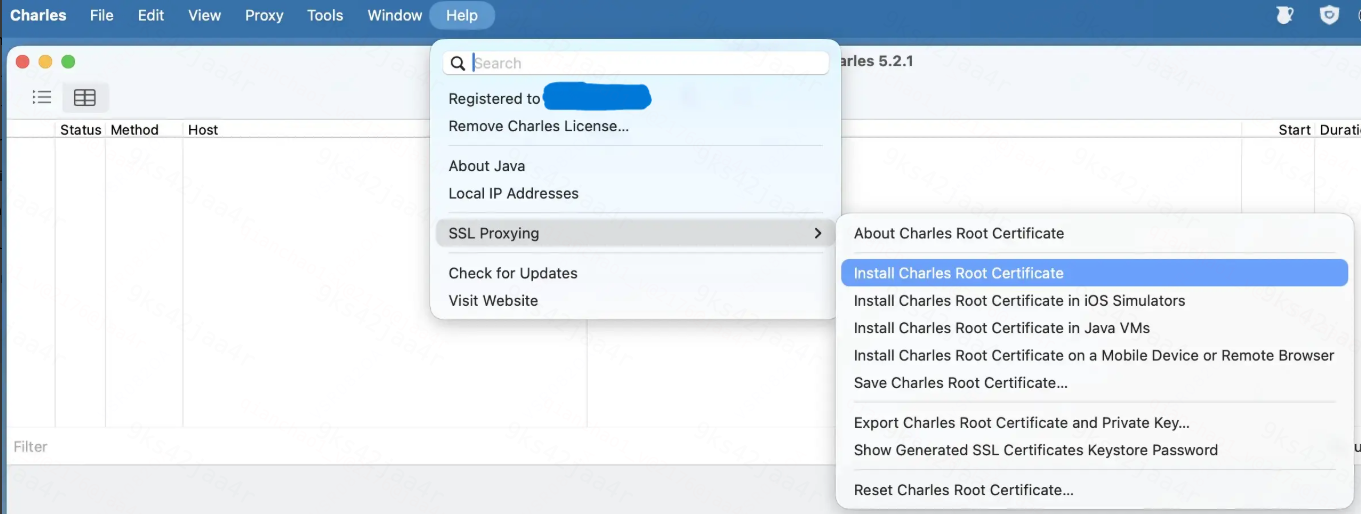
1.3 Install the Certificate on the PC
Follow the menu operations below.
1.4 Charles -> Proxy Menu Configuration
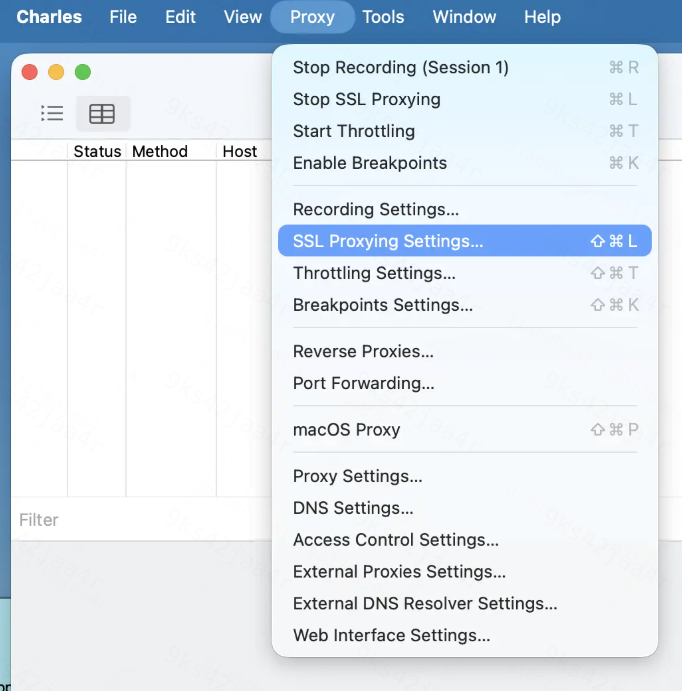
Configure SSL Proxy as follows:
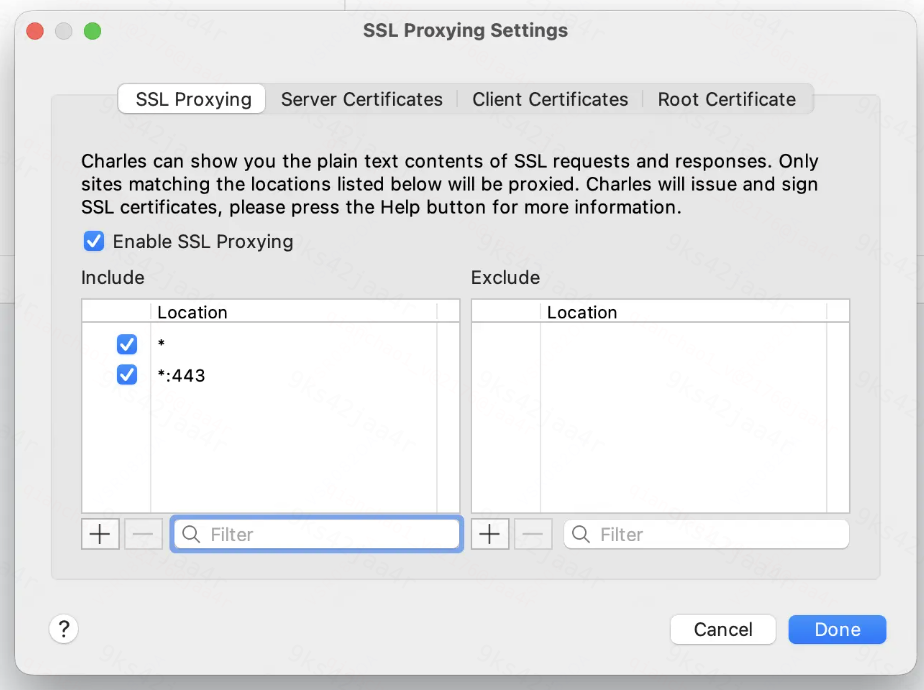
2. Test Phone Configuration
2.1 If It Is an Android Phone, Google Mobile Services Must Be Installed
2.2 Install the Charles Certificate on the Test Phone
Two methods are introduced below: (it is recommended to look at both methods first, don't rush to operate — Method 2 might suit you better)
Method 1: Download via LAN
a. Make sure the PC and the phone are on the same LAN
b. Find Charles's IP (which is the PC's LAN IP) and port (the port used by Charles, default 8888)
Open the following menu in Charles:
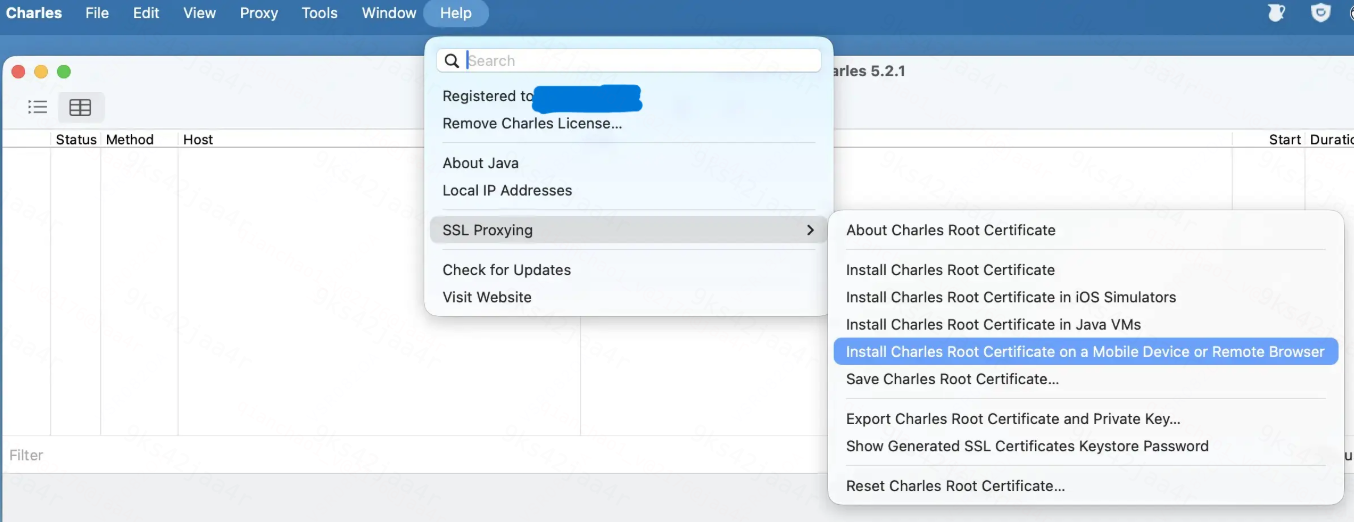
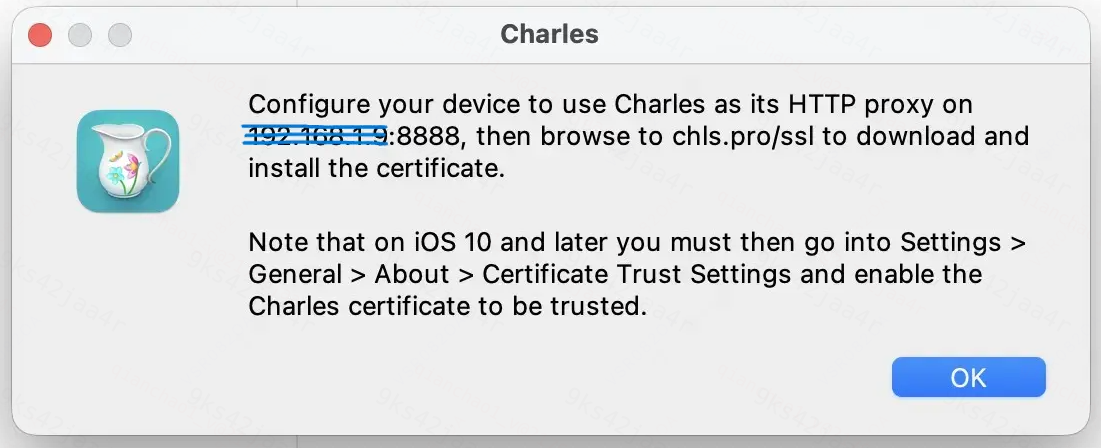
c. Download the certificate
Following the instructions in the prompt box above, open the phone's "Wireless Network", then in "Wireless Network" > "Proxy" settings, turn on "Manual" and set the IP and port to the values in the message box, save and exit. Open the phone's browser and enter chls.pro/ssl.
If this method does not work, try Method 2.
Method 2: File Transfer
a. Download the certificate to the PC
Open the menu below and save the certificate to the PC.
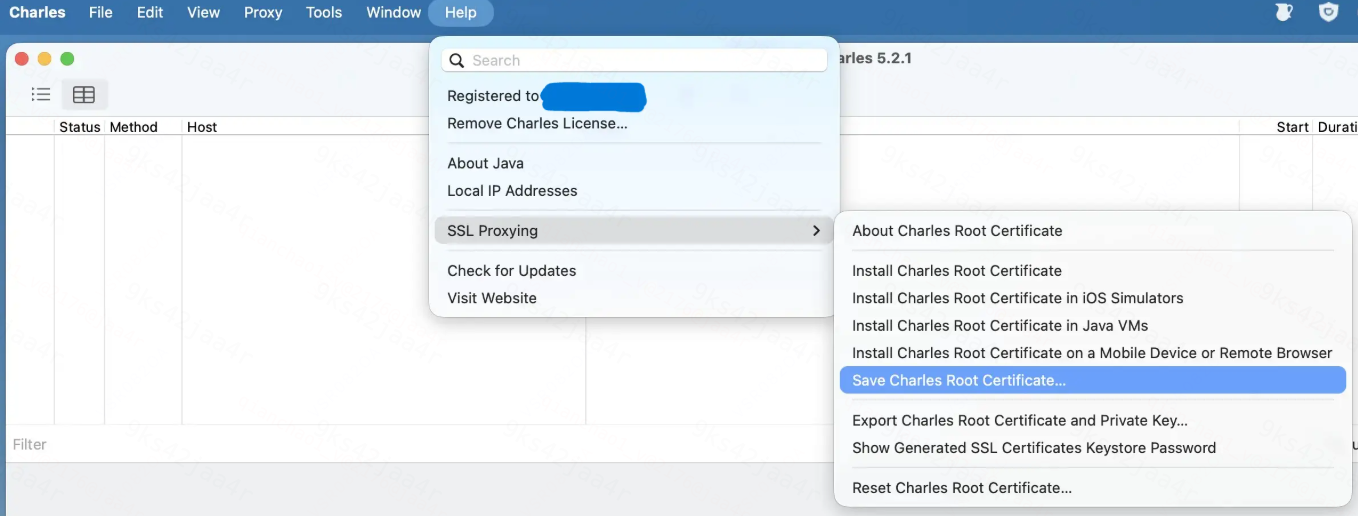
b. Transfer the certificate to the phone
You can push it via data cable, send it via messaging software, via Bluetooth, or other means to transfer the certificate to the phone, and then install the certificate.
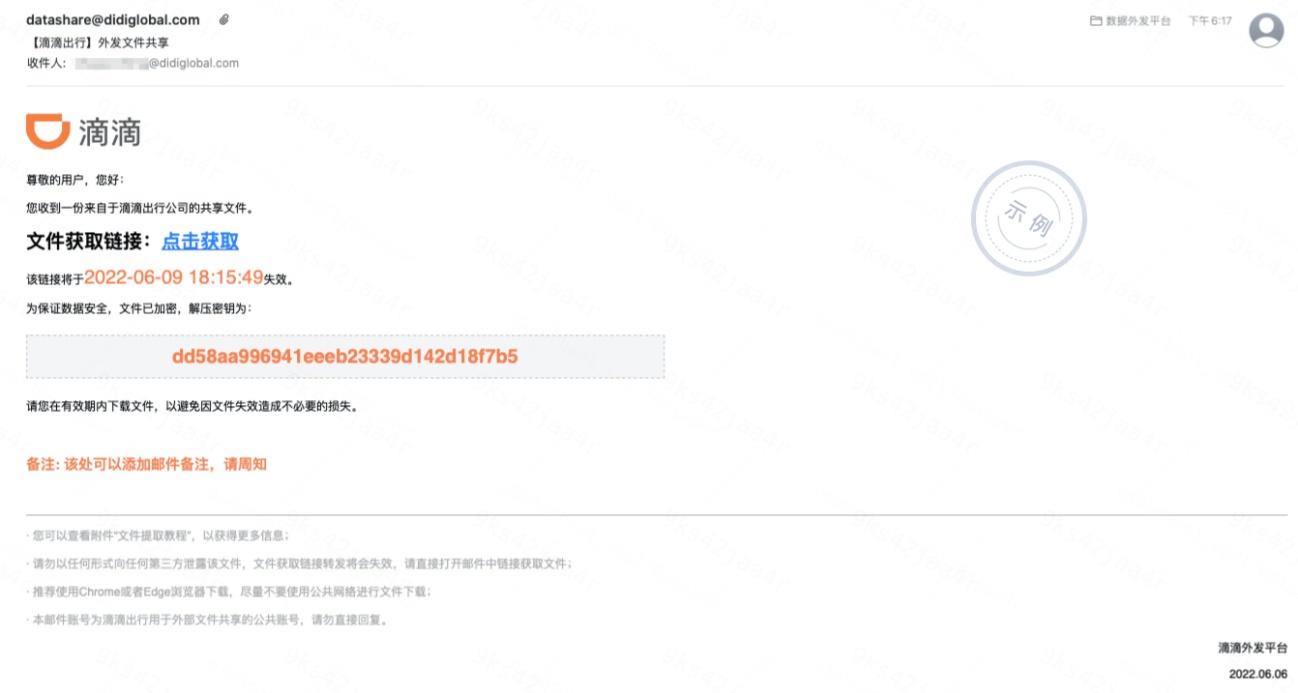
2.3 Install the DiDi Finanzas App Package
DiDi sends the Android/iOS installation packages via the large-file delivery platform. Please look out for the email from DiDi, sample below. ==Please pay attention to the file download validity period.==
2.4 Install Location Mocking Software (Optional)
You may skip installing it for now.
If a Mexican IP is enforced while using the DiDi Finanzas App, you must install the location mocking software.
Enable developer mode and set the location to: 19.434351,-99.13311
3. Use the DiDi Finanzas App to Scan the QR Code
3.1 Place an Order on the PC Mall
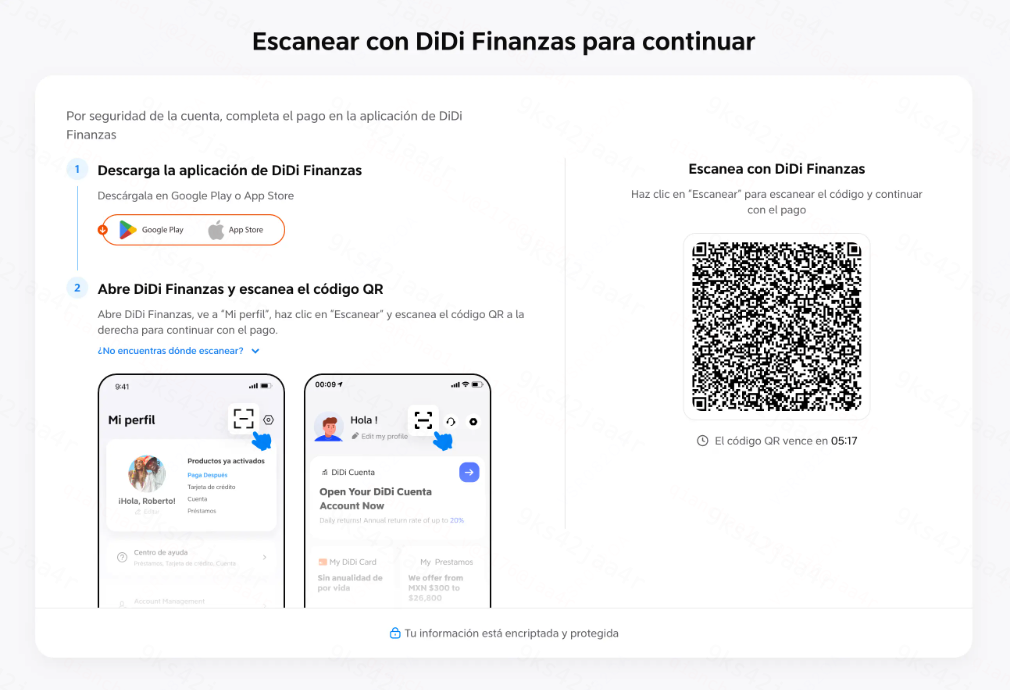
The user places an order on the Merchant's PC mall, selects DiDi Paga Después at checkout, and opens the DiDi QR code page (there is a thread that periodically queries the order payment status, which can be viewed in F12 developer mode).
3.2 Configure the Phone's Wireless Network Proxy
Open the phone's "Wireless Network", then in "Wireless Network" > "Proxy" settings, turn on "Manual", set the IP and port to Charles's IP and port, save and exit.
At this point, Charles will start routing requests and responses.
3.3 Complete Payment Using the DiDi Finanzas App
Following the steps shown on the left side of the page, use the DiDi Finanzas App to scan the QR code and continue the subsequent flow.
4. Find the SMS Verification Code
When you reach the SMS verification code page,
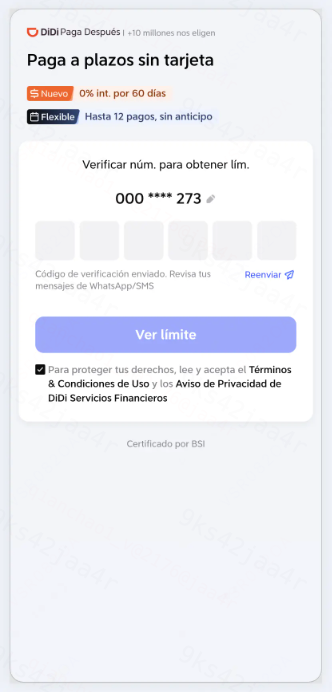
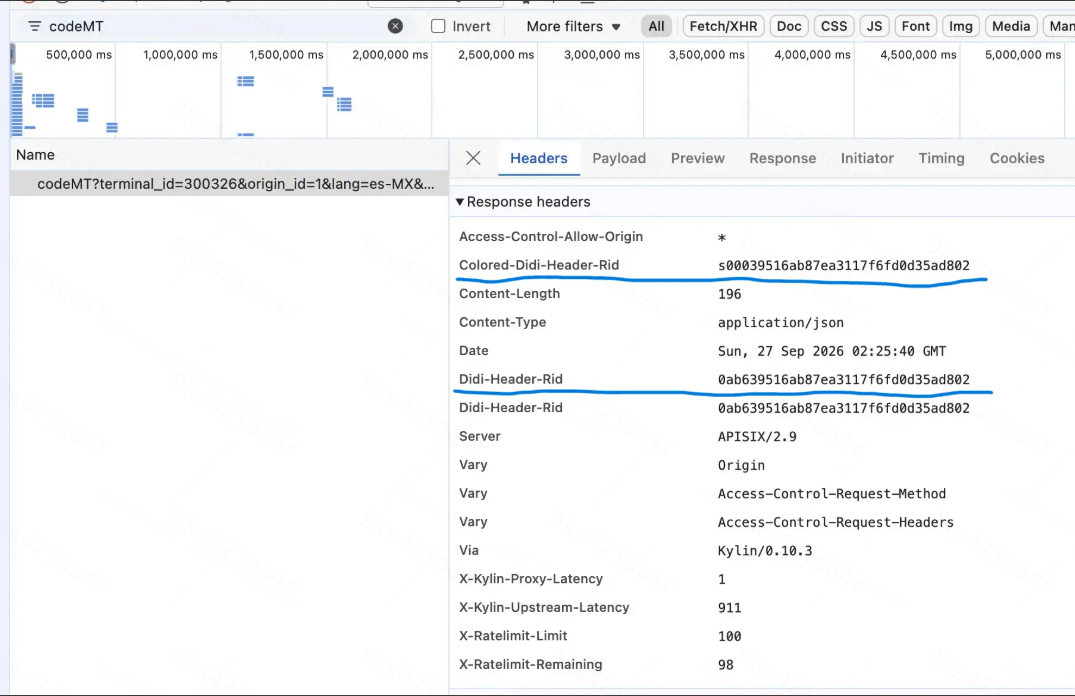
find the API whose name is codeMT (here shown with F12 on the PC as an example; same in Charles, usually the bottom-most API), then send the values of the following two fields to DiDi to look up the verification code:
colored-didi-header-rid
didi-header-rid
5. Acceptance Criteria
-
After the user installs the DiDi Finanzas package, scanning the PC QR code can 100% successfully enter the DiDi payment page.
-
After a successful operation or cancellation on the DiDi payment page, the PC QR code page can seamlessly redirect back to the Merchant mall page.